
Contacts
Registry of companies and persons — suppliers and customers. Supports ARES lookup by Company ID or company name for automatic address and VAT ID fill-in.
Contact list
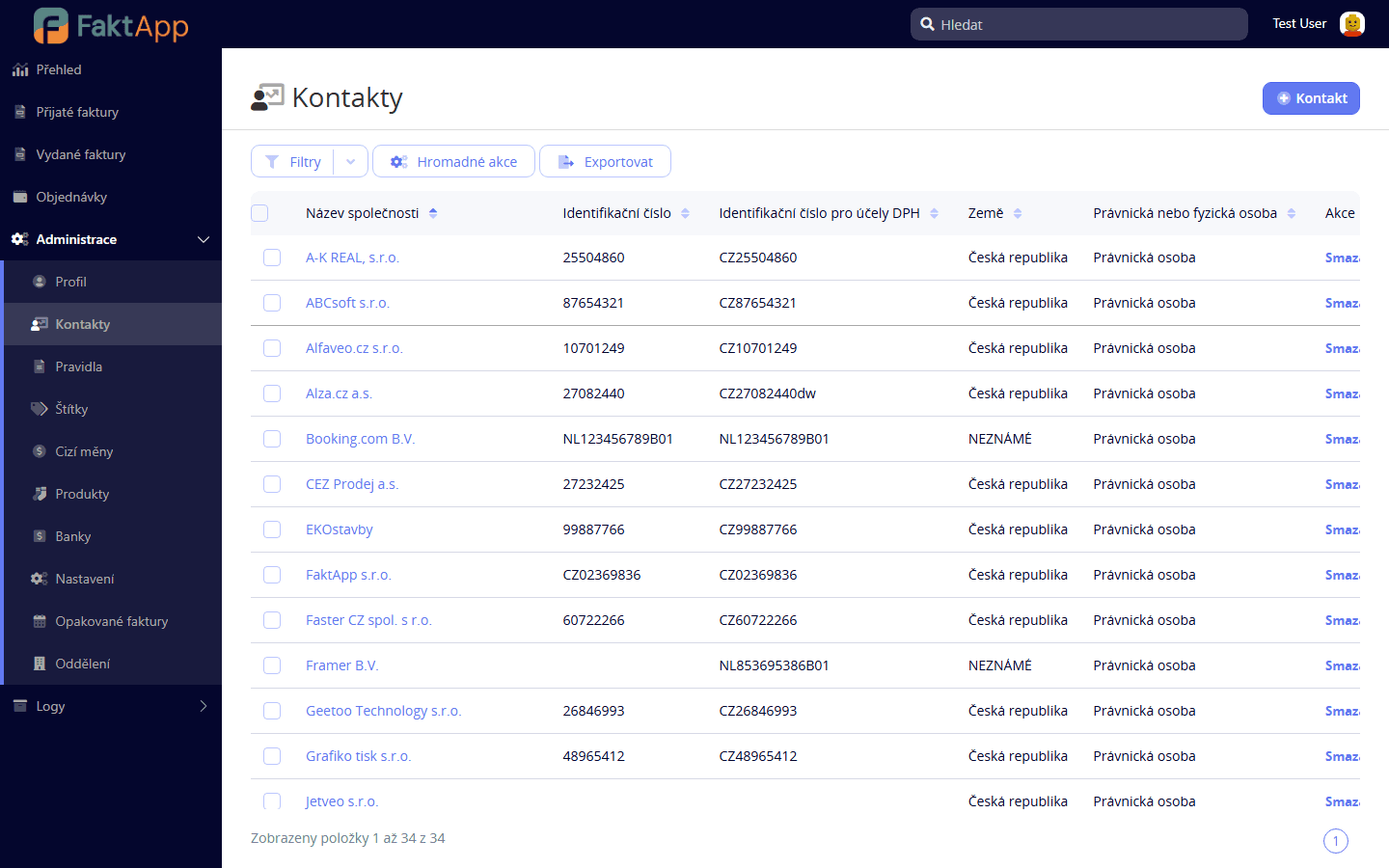
In the left menu, open Administration → Contacts. A list of all registered companies and persons is displayed with their name, Company ID, VAT ID, email, and address. The list can be filtered by name or Company ID. Every invoice, purchase order, and bank transaction refers to a contact as a Partner (supplier or customer).
Creating a new contact
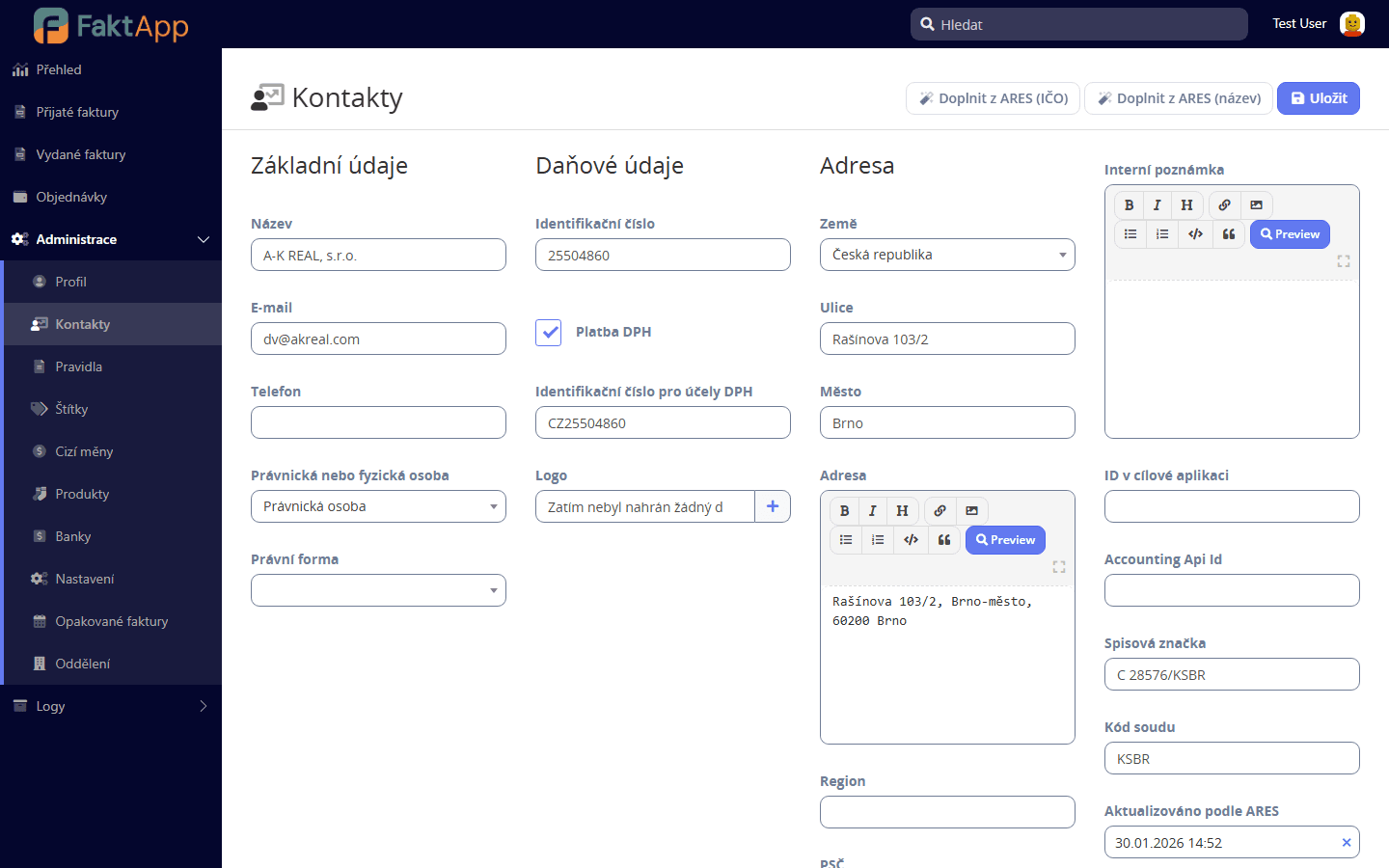
Click the button to create a new contact. Enter the Company ID (IČO) and run the ARES lookup — the application finds the company in the Czech business registry and pre-fills the name, VAT ID, legal form, and address. Review the returned data. Add an email (required for customers to whom you will send invoices), phone, and optionally IBAN. Save.
ARES lookup by company name
If you don't know the Company ID, enter a part of the company name in the Name field and run the name-based lookup. A list of candidates is displayed — pick the correct company and the data including Company ID and VAT ID is filled in. ARES covers Czech companies only; foreign contacts (including Slovak and Polish) must be filled in manually. For EU companies, the VAT ID uses a country prefix, e.g., SK123456789 or DE123456789.
Creating a contact from a bank transaction
When importing bank transactions, FaktApp records the counterparty name and IBAN. If you don't yet have a contact matching the counterparty, you can quickly create one from the transaction detail — the data (Name, IBAN) is transferred. Then add the Company ID and run the ARES lookup to fill in the remaining fields.
Handling duplicate contacts
Duplicates typically arise when multiple users enter the same customer manually, or when a contact is created in parallel from ARES and from a bank transaction. The current version does not detect duplicates automatically — check the list manually (same Company ID or similar name). To merge, decide which contact to keep, relink references from invoices and transactions, and then delete the duplicate. A contact referenced by any record cannot be deleted.
What the module doesn't support yet
Automatic duplicate detection, CRM features (communication history, opportunities), VIES verification of foreign VAT IDs, and bulk CSV import are not available in the current version. If you need these features, contact support.