Email Invoice Import
Automatic invoice collection from an email inbox. The application connects to your email inbox via IMAP protocol and automatically downloads and processes attachments containing invoices.
Setting up email inbox (IMAP)
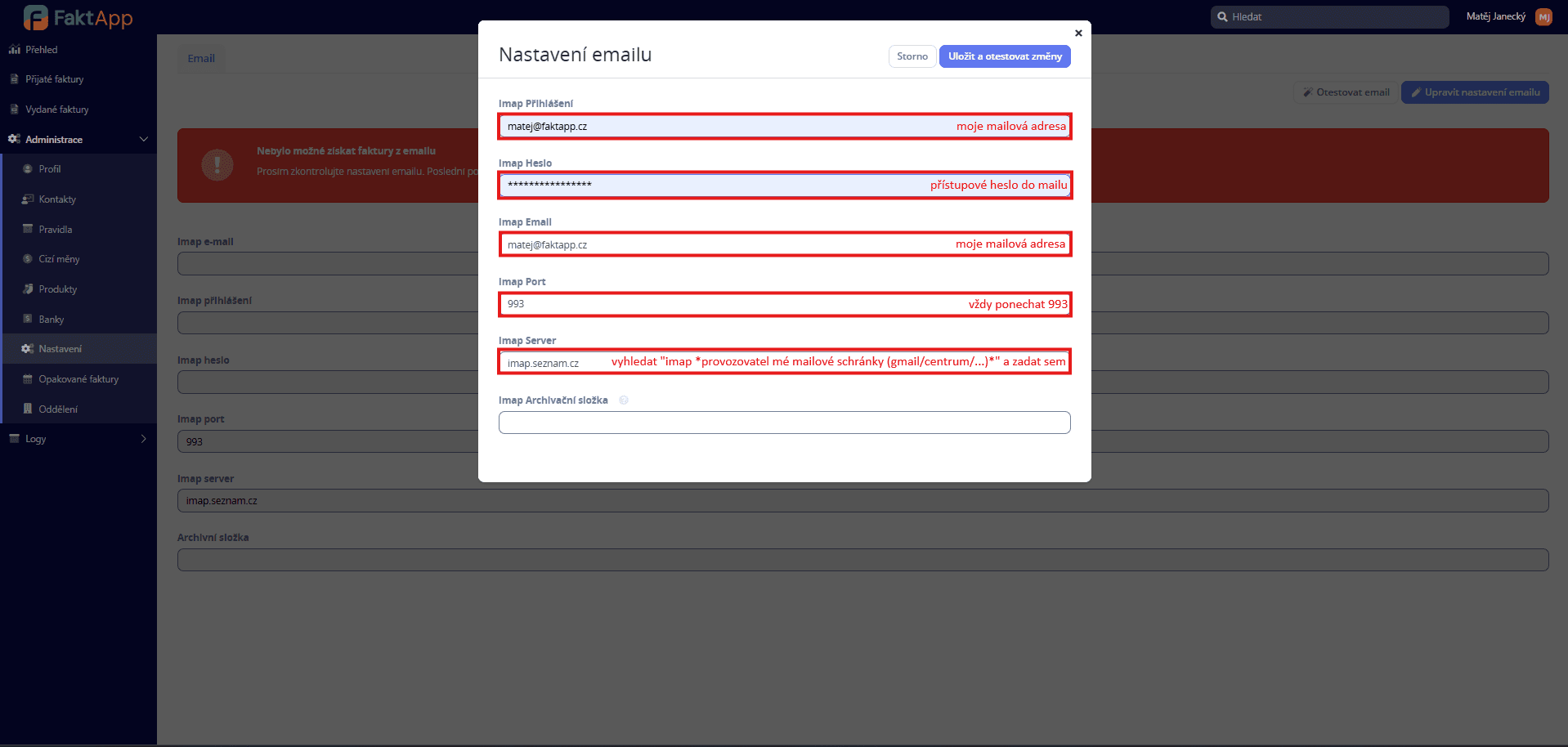
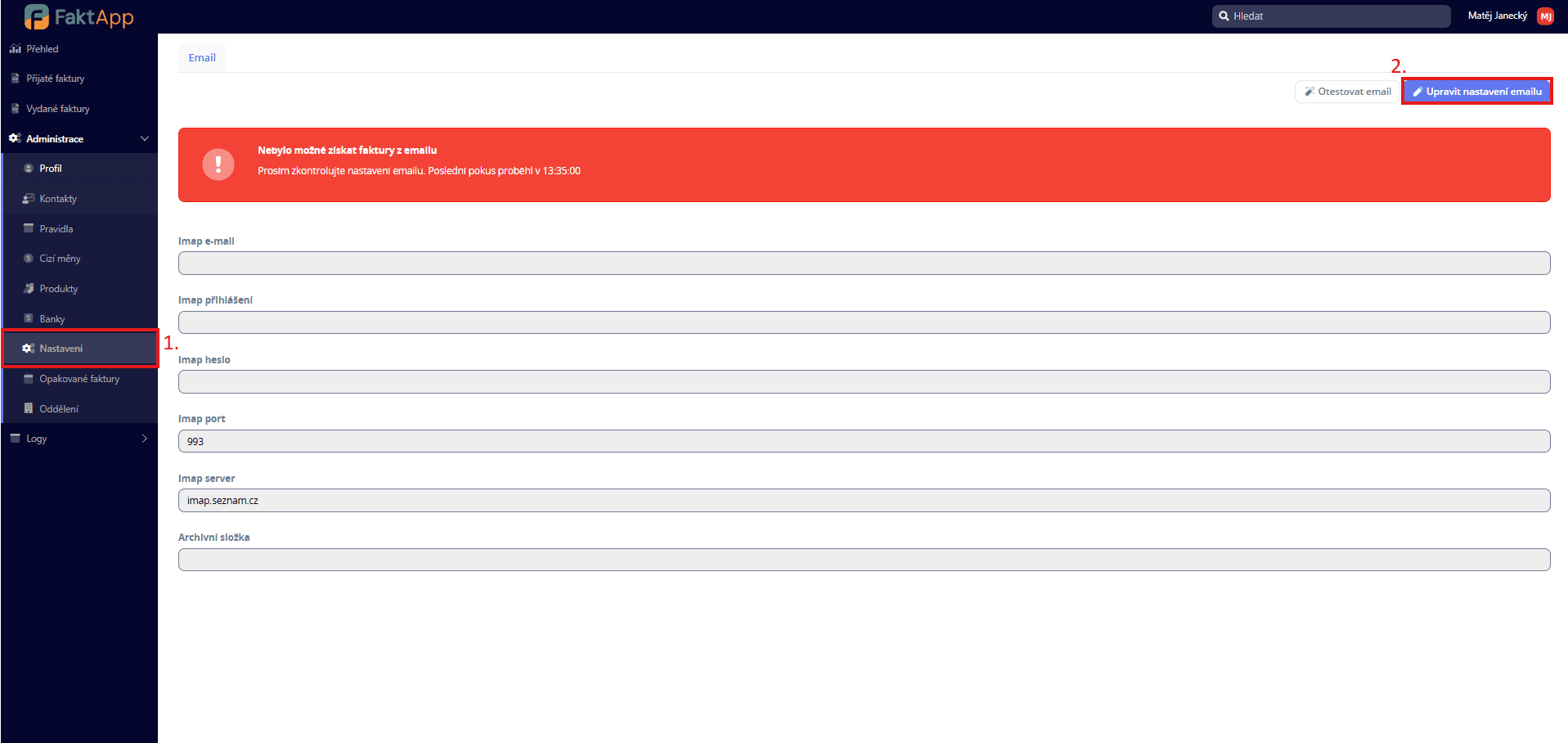
In the application settings, configure the email inbox connection. You have two options: 1) Classic IMAP — enter the IMAP server, port (default 993), login and password, and archive folder name. 2) Microsoft Office 365 — enter Tenant ID, Client ID, and Client Secret from Azure AD (Microsoft Entra), and the mailbox email address.
Gmail — app password
A special procedure for Gmail accounts: generate an app password and use it in the IMAP settings instead of your regular password.
Why you need an app password
Google does not allow IMAP sign-in with your regular account password. Instead, you must generate a 16-character app password that works only for the specific service. Your email address stays the same — only the password entered in FaktApp's IMAP settings changes.
Open your Google Account settings
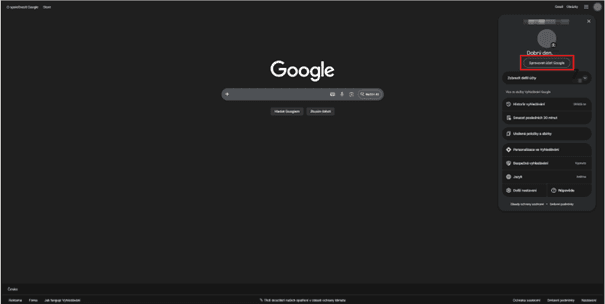
Go to google.com and click your profile icon in the top right. In the panel that opens, choose Manage your Google Account. The account settings page opens.
Enable 2-Step Verification
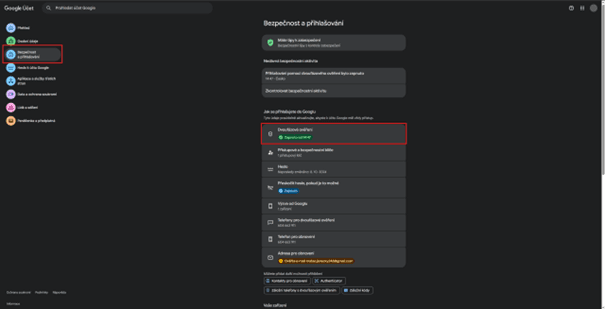
In the left menu, select Security. Under "How you sign in to Google", verify that 2-Step Verification is enabled. If not, click the item and follow the wizard. Without 2FA you cannot create an app password.
Create an app password
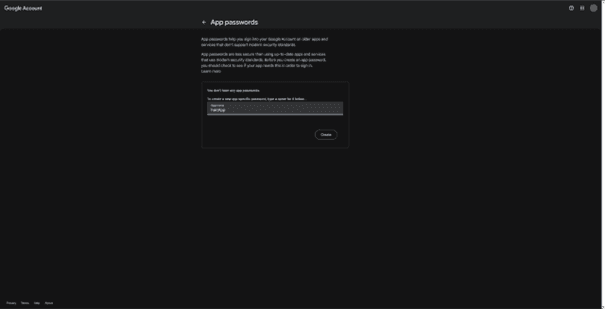
Open https://myaccount.google.com/apppasswords. In the "App name" field, enter any label that helps you identify the password — we recommend "FaktApp". Click the Create button.
Copy the 16-character password into FaktApp
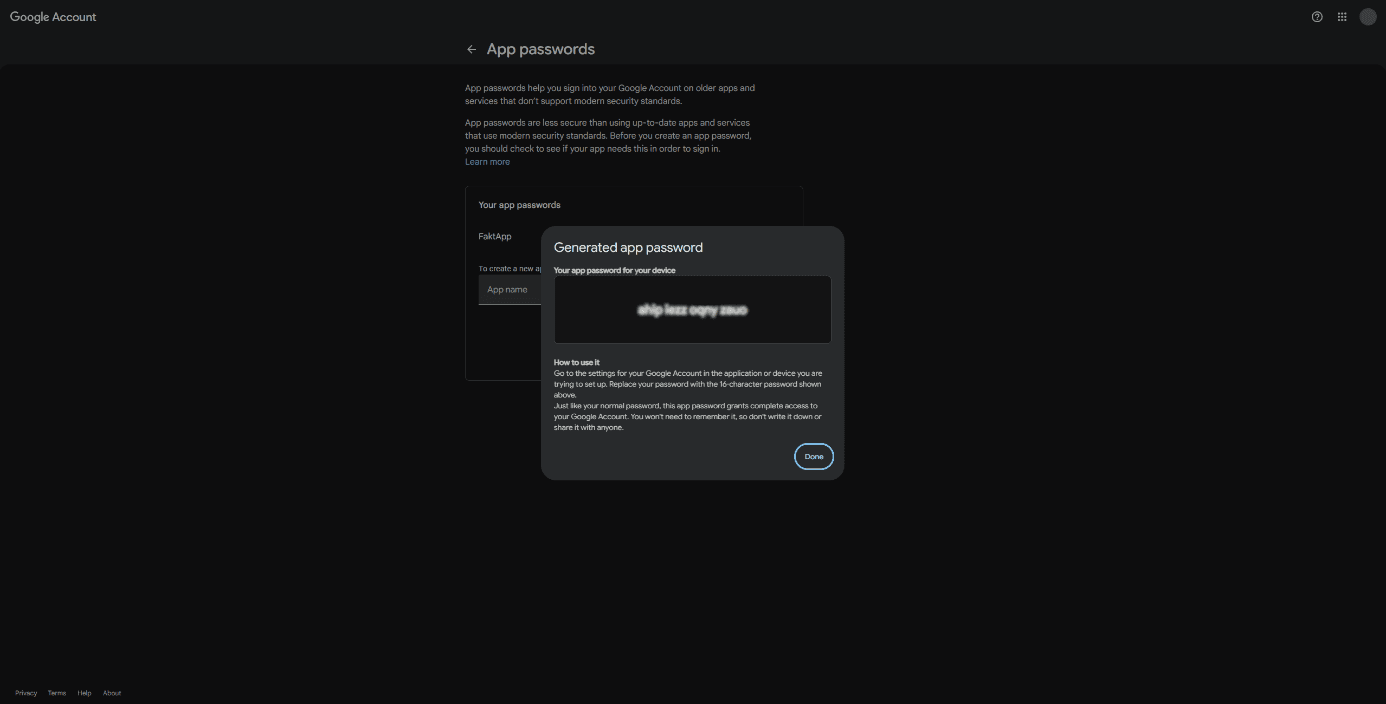
Google displays the generated 16-character password as "xxxx xxxx xxxx xxxx". Copy it — once the dialog is closed, it cannot be shown again. In FaktApp's IMAP settings, enter your Gmail address as the login and this generated password instead of your usual password. IMAP server is imap.gmail.com, port 993.
You can revoke the app password at any time from the App passwords page. FaktApp will then lose access to the mailbox until you provide a new password.
After configuration
Automatic mail processing
After configuration, the system regularly connects to the inbox and downloads emails from the last 30 days. PDF attachments are automatically loaded as new incoming invoices and AI data extraction is triggered. Processed emails are moved to the archive folder. You receive an email notification with a summary of newly loaded invoices.