
Incoming Invoices
Management of invoices received from suppliers. Supports import from email, manual file upload (PDF, ISDOC, ZIP), and AI data extraction. Invoices flow through a workflow from draft through approval to payment.
Viewing the invoice list
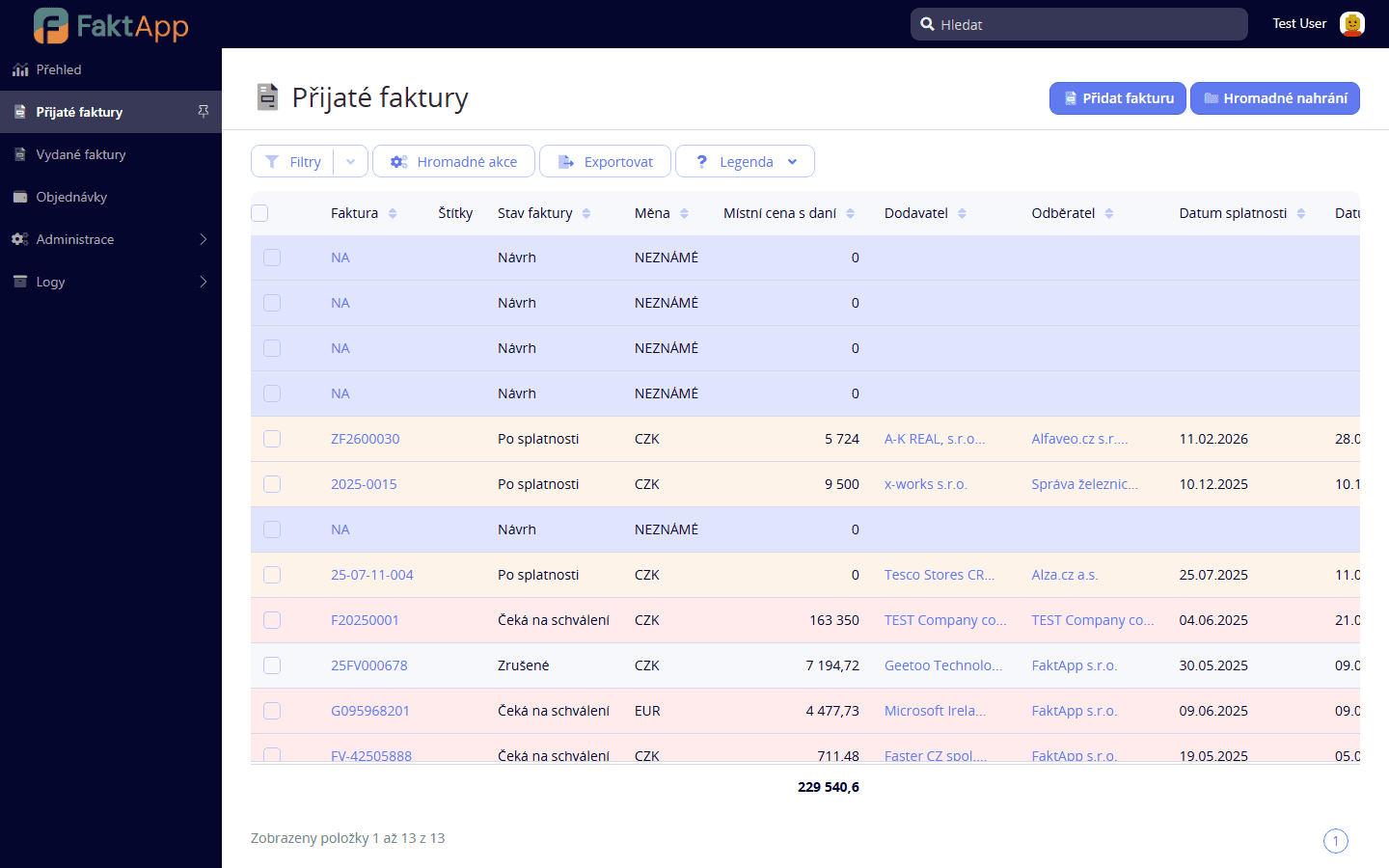
In the left menu, click Incoming Invoices. A list of all incoming invoices with their status, supplier, invoice number, due date, and total amount is displayed. Invoices can be filtered by status, supplier, or date. Each invoice status is color-coded.
Importing an invoice from email or file
New invoices are imported automatically from a configured email inbox (IMAP). For manual upload, click the file upload button and select a PDF, ISDOC, or ZIP file. After uploading, AI automatically extracts the data — supplier, invoice number, issue date, due date, total amount, and VAT.
Reviewing and editing extracted data
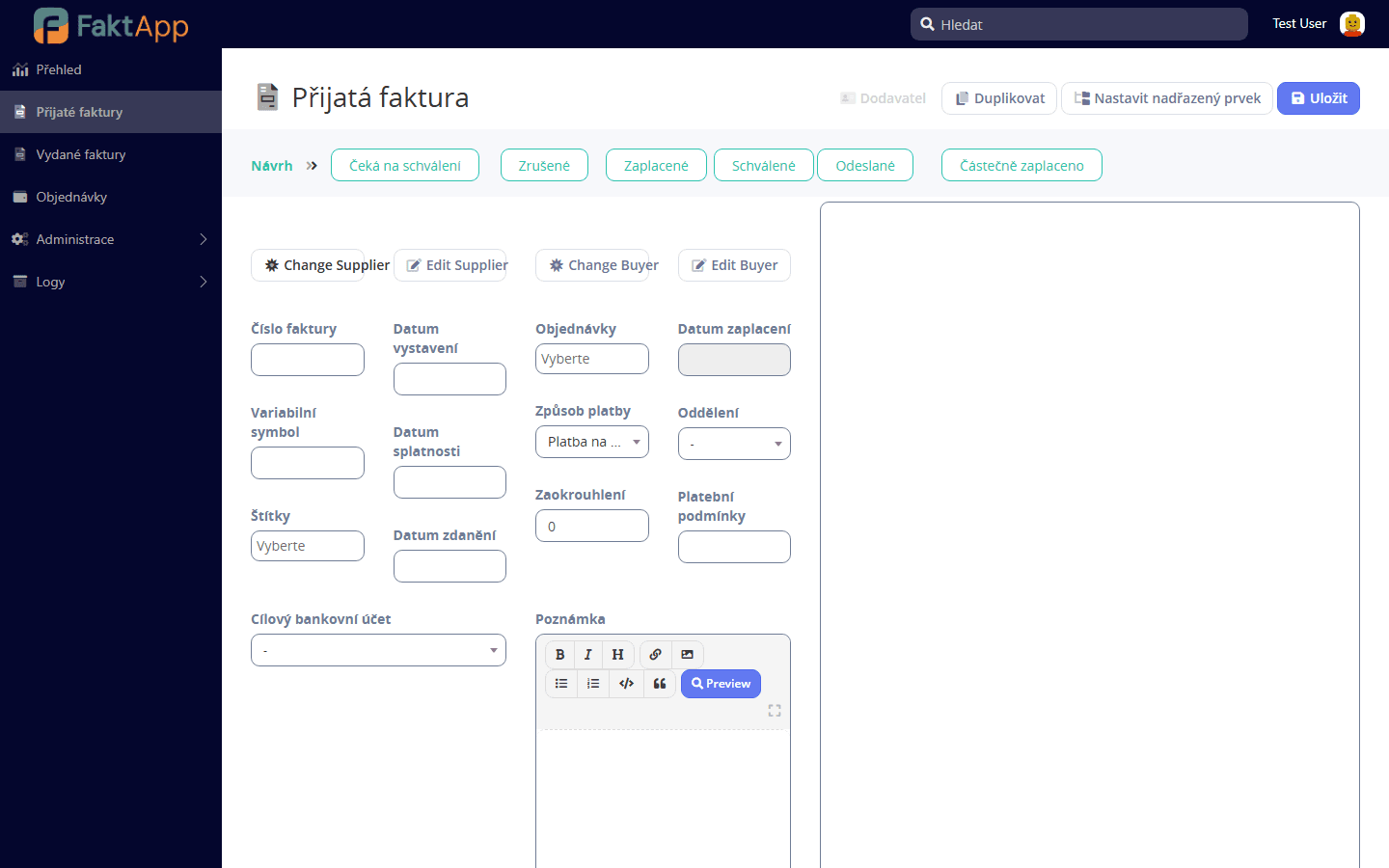
After import, check the extracted data on the invoice detail. If the AI did not recognize any field correctly, edit it manually. The detail has tabs: Basic Info, Items, Attachments, and Change History. The attached PDF or ISDOC is available under the Attachments tab.
Approving an invoice
Open the invoice detail in Draft or Pending Approval status. Check all details — supplier, amount, due date, and line items. Click the button Set Invoice as Approved. The invoice moves to Approved status and is ready for payment.
Marking as paid
Open the approved invoice detail. Click the button Set Invoice as Paid. The invoice moves to Paid status. If you have a bank account connected via GoCardless or Fio Bank, payments can be matched automatically or manually via the transaction matching action.
Export and accounting dispatch
From the list or invoice detail, you can export: Pohoda XML for import into Pohoda accounting, ISDOC ZIP as a Czech electronic format, or ABO file for bulk payment orders. Dispatch to iDoklad, AbraFlexiBee, or Premiéra is available via configured rules or a manual action.