
Banks and Transactions
Connecting bank accounts via GoCardless or Fio API, importing bank transactions, and matching them with invoices by variable symbol, IBAN, and amount.
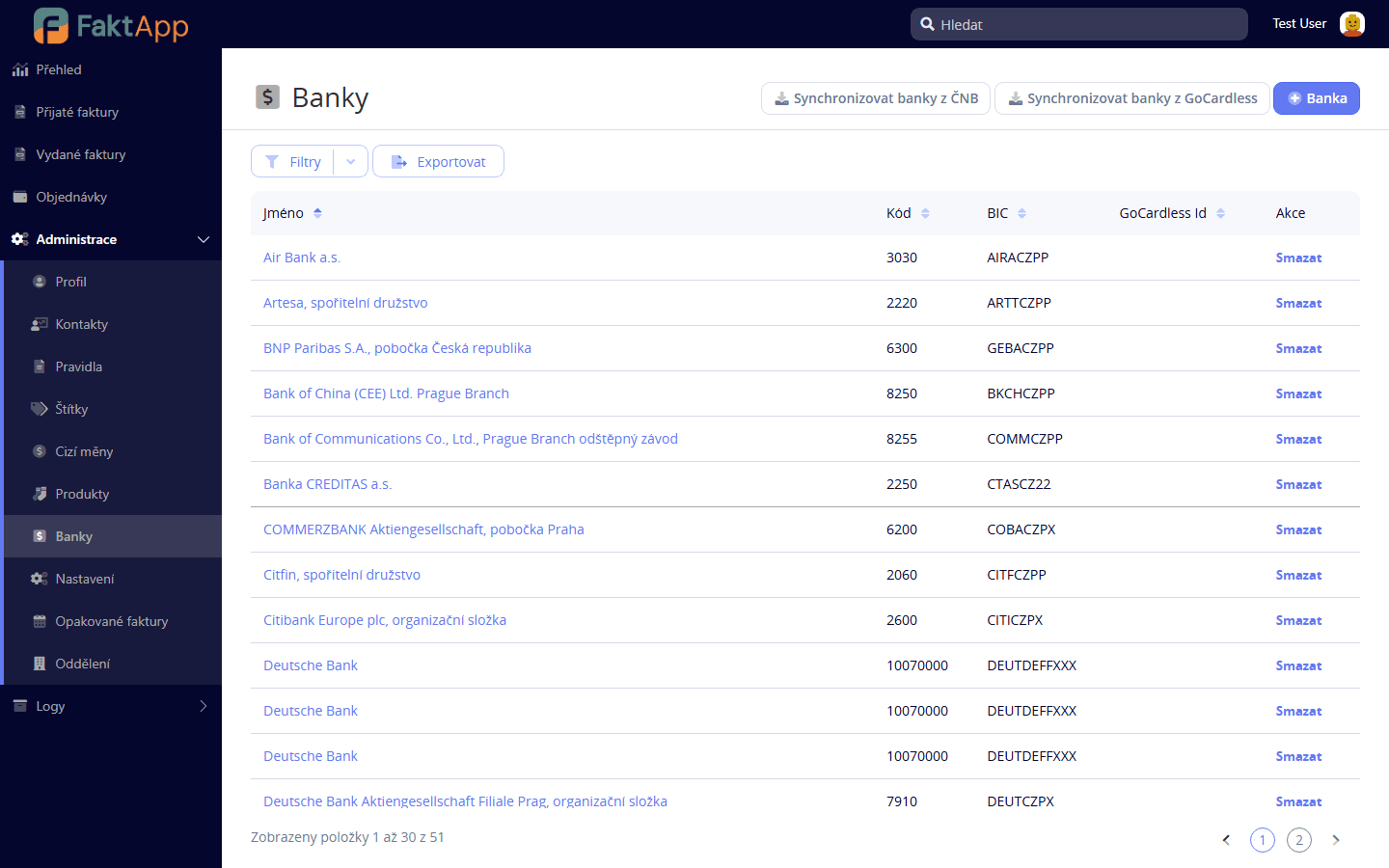
List of connected banks
In the left menu, open Administration → Banks. A list of connected banks and bank accounts is displayed with their status (Active, Disabled, Blocked). For GoCardless accounts, the authorization (Requisition) status is also shown. For Fio Bank, a valid API token in the bank detail is sufficient.
Connecting a bank via GoCardless
Click the button to create an authorization link. Select the bank from the list of supported banks. The application generates a link — open it in a browser, log in to your internet banking, and confirm consent to account access. Return to FaktApp and run Load accounts — all the accounts you authorized appear. From this point on, transactions are imported automatically by a scheduled job.
GoCardless authorization statuses
The authorization (Requisition) goes through these statuses: Created (CREATED) — request opened, Linked (LINKED) — user finished authorization at the bank, Succeeded (SUCCEEDED) — authorization valid, transactions can be loaded, Expired (EXPIRED) — validity expired (typically 90 days), Rejected (REJECTED) or Requires action (USER_ACTION). After expiration, you must create a new Requisition and re-authorize at the bank — the application does not notify you proactively.
Connecting Fio Bank
Fio Bank does not use Requisition. Paste the API token issued in Fio internet banking directly into the bank account settings. Transactions are then loaded the same way as with GoCardless — either manually via the Load transactions action or by a scheduled job.
Matching transactions with invoices
Matching looks for a link between a transaction and an invoice by variable symbol, counterparty IBAN, and amount. You run it manually with the pairing button or via a scheduled job. A successful match sets the transaction status to Paired and updates the Paid amount on the invoice. Transactions without a matching invoice stay in the New state — typically when the variable symbol is missing or the amount differs.
Transaction statuses
Transactions have these statuses: New (NEW) — waiting for matching, Paired (PAIRED) — linked with an invoice and fully covers it, Partially paired (XPARTIAL_PAIRED) — transaction only partially covers the invoice (e.g., an advance), Internal (INTERNAL) — transfer between your own accounts. Automatic matching directly at import time is not supported yet — matching is always a separate step.